
How to let your child watch only approved YouTube channels on iPad
On your child’s iPad, open YouTube Kids and choose Approve content yourself. You can approve a whole channel or handpick individual videos. If you also want to block Shorts or give each creator a time limit, you can do that with free Tellytide.
Choose what appears in YouTube Kids
- Open YouTube Kids on the iPad. In Settings, answer the multiplication question or enter your parent passcode.
- Choose your child’s profile, enter your parent account password, then tap Edit settings.
- Choose Approve content yourself. Read the introduction, then tap Select.
- Tap + beside each channel or video you’re happy for your child to watch. Choose Preview to see their selection, then Done to save it.
In this mode, search is off and recommendations come from what you approved. Approving a channel gives access to its eligible videos. To review every video yourself, approve videos individually. To change your choices later, open Manage under Approved content only.
Choose creators and set limits in Tellytide
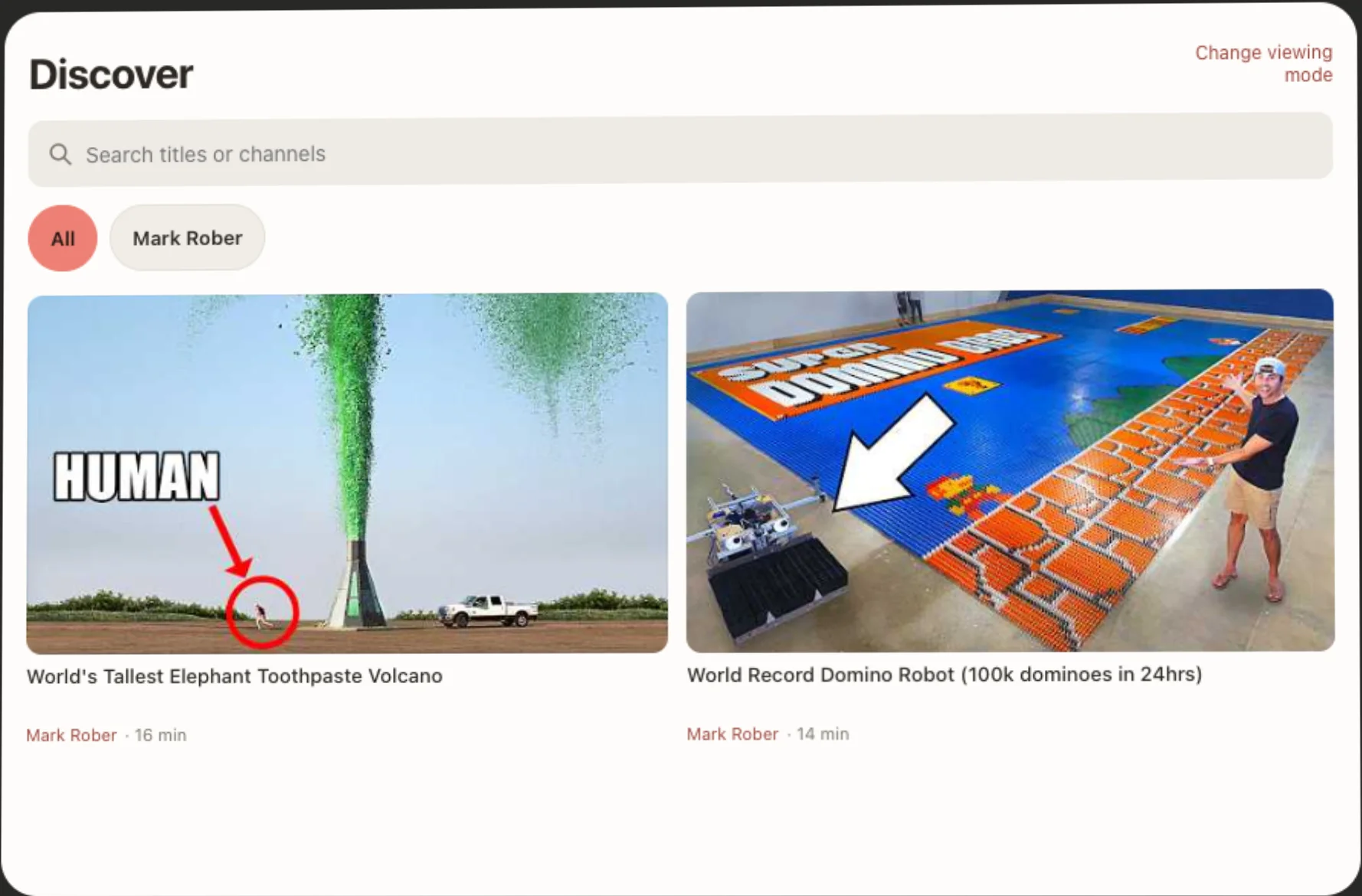
Try it with one creator first. In the free browser demo, leave Mark Rober selected, deselect Cleo Abram and keep Block Shorts on. Choose Watch on demand to see just Mark Rober’s longer videos. You can try this without an account.
Try the creator controls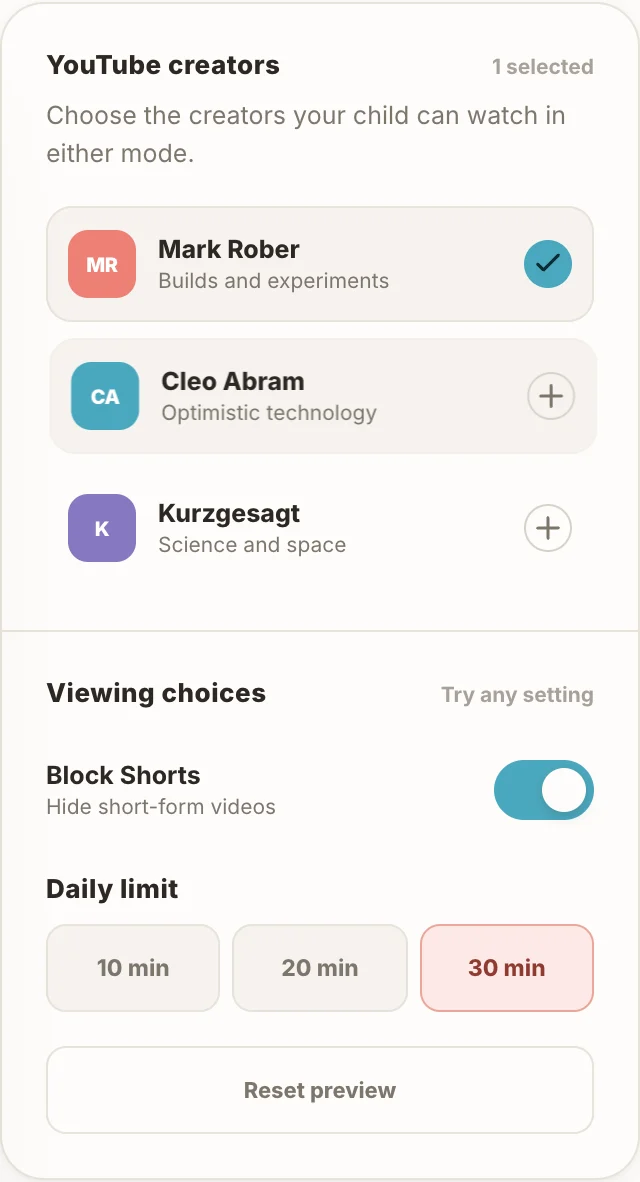
Set it up on your child’s iPad
- Create your free Tellytide account in a browser and add a child profile.
- Select Add a channel. Browse, search, or paste a YouTube channel link. You can start with one creator, then adjust Shorts, daily viewing time and per-creator limits in the parent dashboard.
- Continue to pairing. Open Tellytide on the iPad and enter the six-character code from your browser. The app requires iPadOS 26 or later. Your child can watch without a Google login.
Tellytide uses YouTube’s player, so YouTube may show ads. Compare Tellytide and YouTube Kids.
Can my child still open regular YouTube?
Yes, if they can open the YouTube app or its website in Safari. Each setup above applies inside its own app. For restrictions across the iPad, use Apple’s Screen Time parental controls.